Search and Filtering
The Search Builder is one of the most powerful tools in Senbee Connect. It’s available anywhere you see a data table — whether you’re viewing customers, buildings, rooms, or anything else. It lets you filter, organize, and save specific data views, so you can quickly get back to the exact information you need.
Written By Tristan White
Last updated 11 months ago
Opening the Search Builder
You can open the Search Builder by clicking the magnifying glass icon in the top-right corner of any table.
Once opened, the Search Builder appears above the table. From here, you can start defining custom filters based on any column in the dataset.
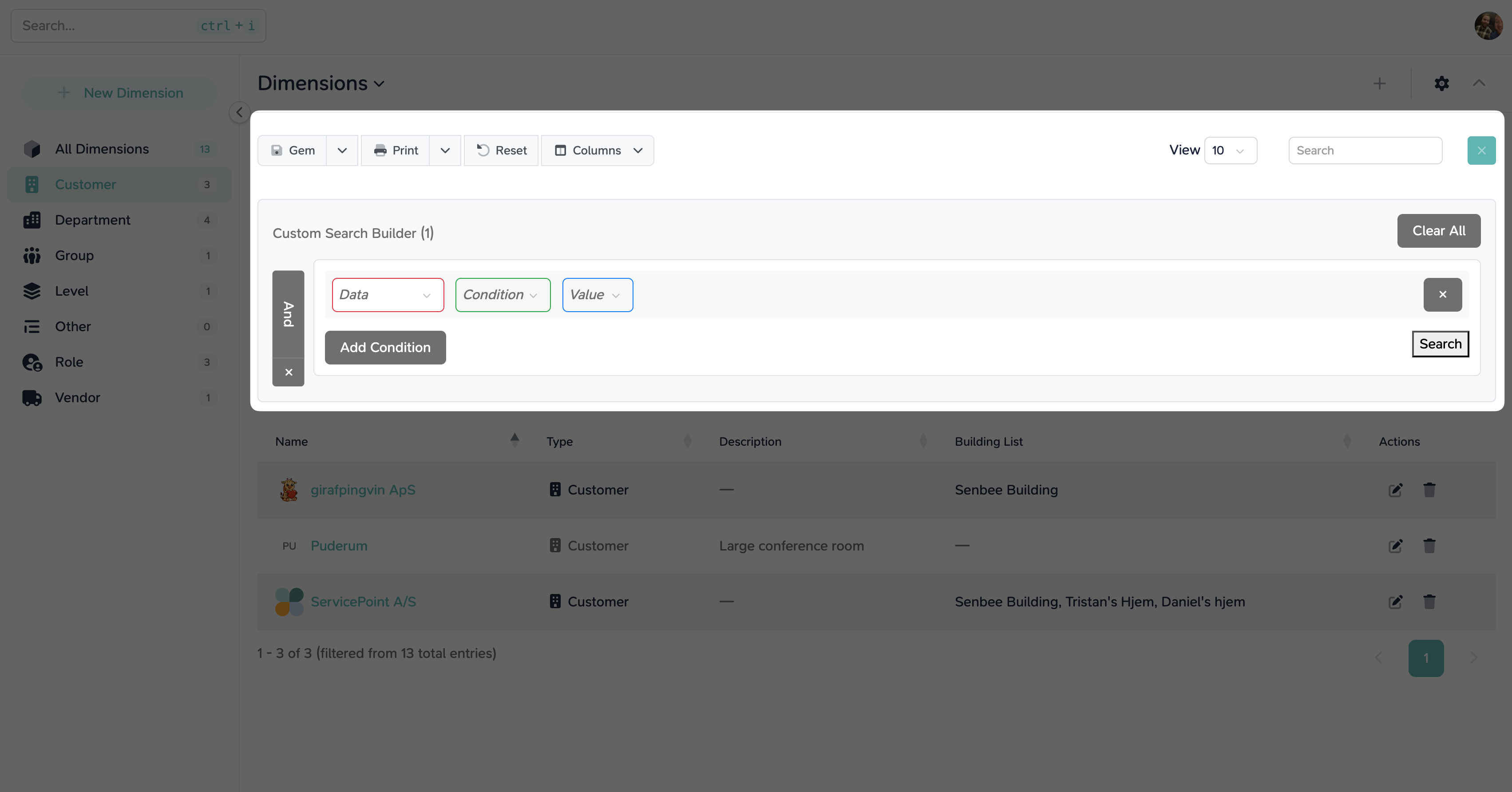
Building Your First Filter
Each filter condition consists of three parts:
Column – Choose which column you want to filter (for example, Building List).
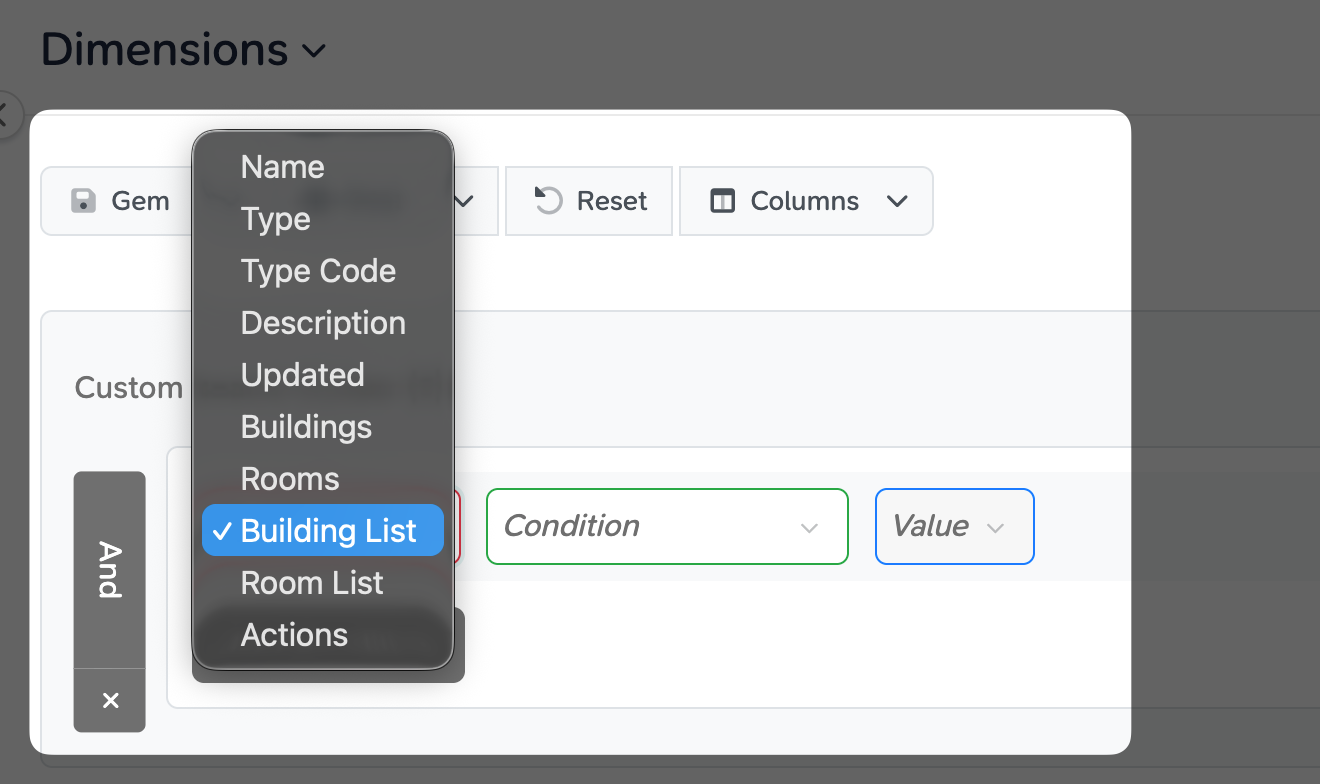
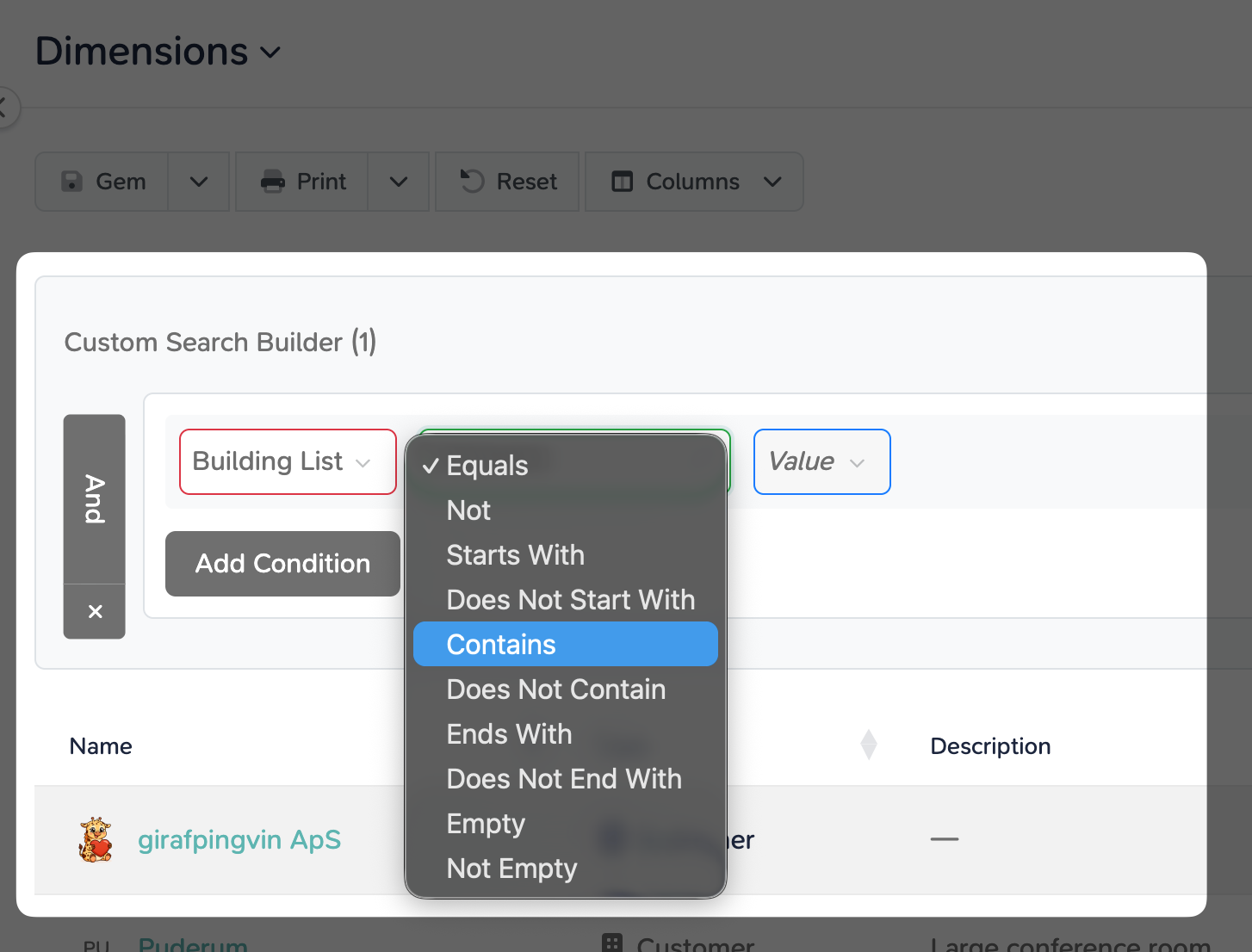
Condition – Select how the filter should behave (for example, Contains).
Value – Enter the keyword or value you’re searching for.
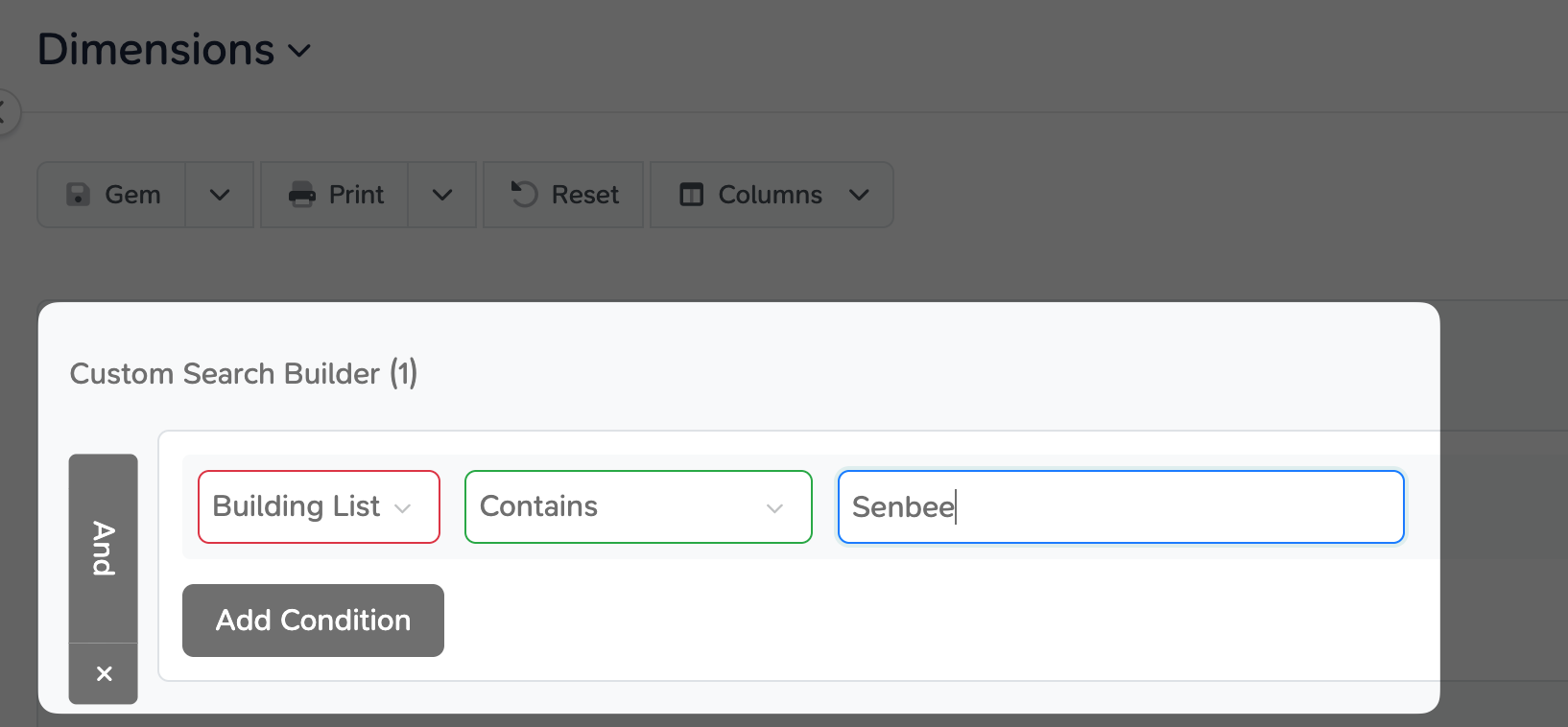
Example: To show all entries that include Senbee in their building list, select Building List, choose Contains, and type Senbee.
When you apply the filter, the table instantly updates to show matching entries.
Saving a Search State
Once you’ve set up a useful search, you can save it as a state for easy access later.
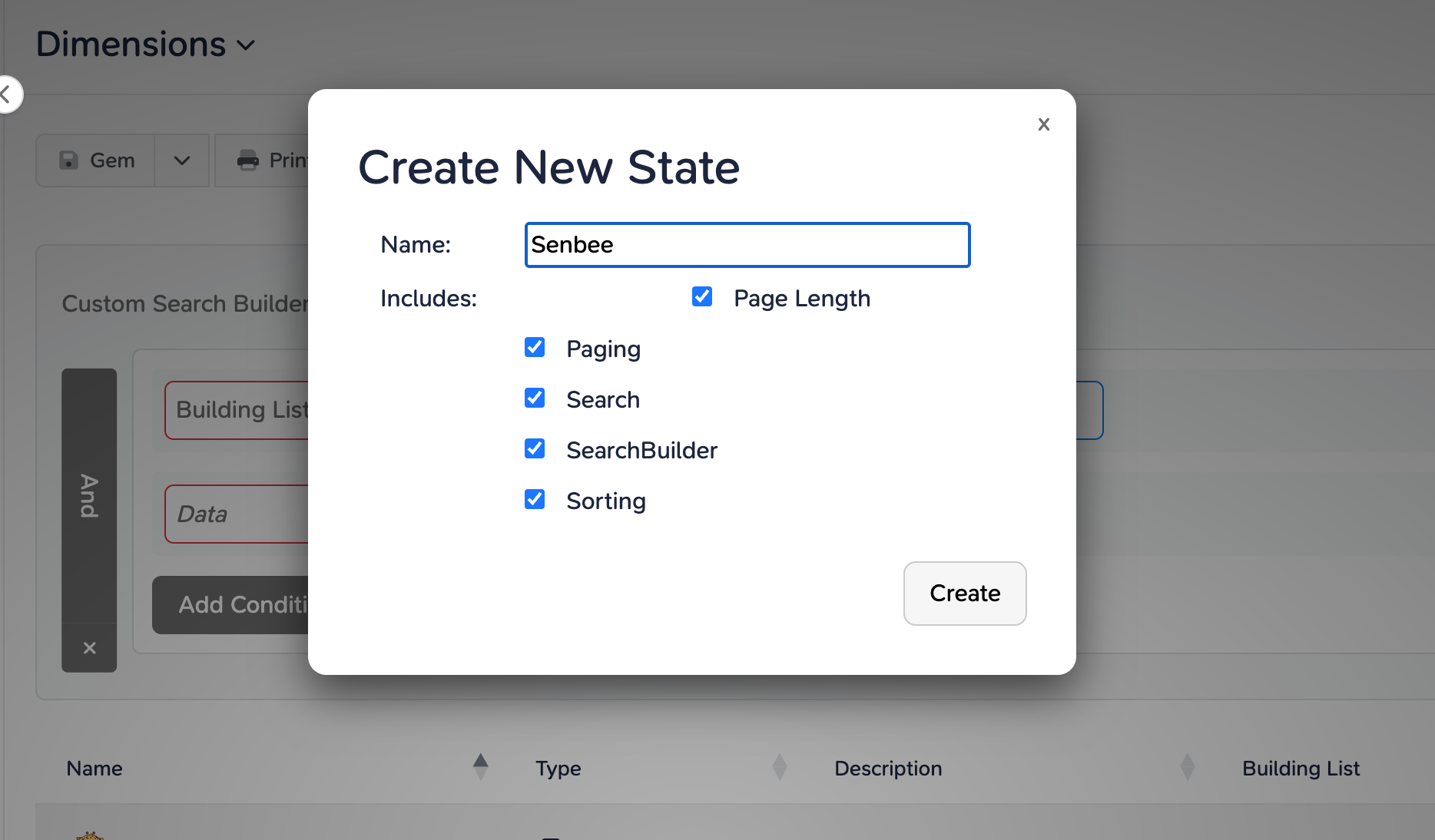
Click the Save (Gem) button above the table, give your filter a name, and choose which settings to include—such as paging, search, sorting, and more.
Your saved state is stored in your browser, so it’s immediately available next time you open the page.
Switching Between Saved States
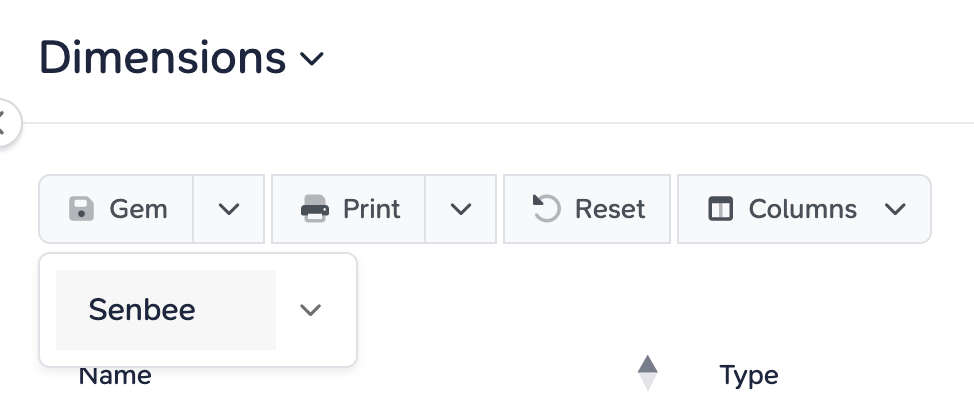
To quickly switch between different saved filters, open the dropdown next to the save button and select your saved state.
For instance, you could have one state for customers at Senbee Building and another for Vendors or Departments.
Resetting or Clearing Filters
If you need to start over, click Reset to clear all active filters and return to the default table view.